
3shape Dental Manager CAM access
For all 3shape users sending CAE Dental design work through Dental Manager. We have now made it easier to get to your CAM files for downloading. If you have installed our DME or currently have a button for CAE Dental on your Taskbar in 3shape Dental Manager then the steps below is your solution.1. Highlight the current file you need the CAM files for by turning the order blue. (Single click the order)  2. Click the CAE Dental Logo on your 3shape Dental Manager Taskbar.
 3. Your web browser should then take you to your desired order as long as the order has been designed. If no order loads then case is not currently finished; check back at a later time to receive.
 If you have any issues or questions don't hesitate to reach out and we will do the best we can to help.
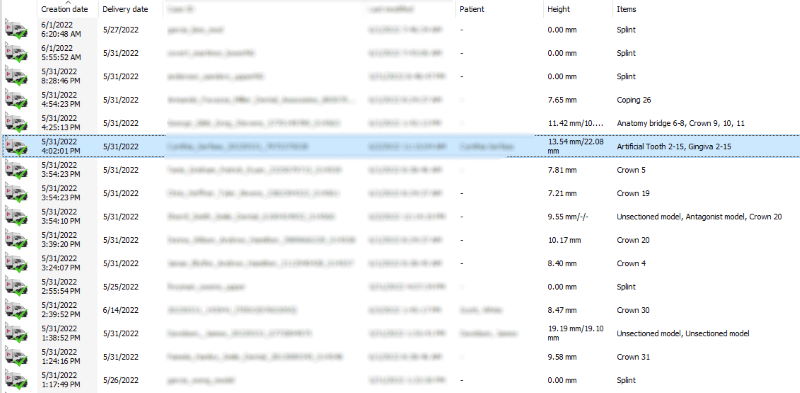 2. Click the CAE Dental Logo on your 3shape Dental Manager Taskbar.
 3. Your web browser should then take you to your desired order as long as the order has been designed. If no order loads then case is not currently finished; check back at a later time to receive.
 If you have any issues or questions don't hesitate to reach out and we will do the best we can to help.
Share this post
Related
Posts
 Latest News
Platform Updates & Store Credit
🚀 New Platform Updates to Improve Your Ordering Experience We’ve been hard at work enhancing your workflow, speeding up case management,...
Latest News
New Dental Connect Upload Box!
We’re excited to announce the launch of our enhanced Dental Connect Upload Box, designed to make your experience smoother, faster,...
Latest News
Faster Ordering: Flipper/Partial + Denture in One Step
🎉 NEW ADD-ONs: Streamline Your Workflow Good news! We’ve introduced a small but powerful update that makes your ordering process smoother...
Latest News
AutoPay Changing Dec 1st
🗓️ ️️️ Important Update: Weekly Autopay Begins December 1 Please Note: These changes apply only to customers who have enabled “AutoPay”...